ZULUUTC / Z
—UTC+00
Saved to your browser profile. Shared with your TV when you cast.
READ ONLY Independent radio monitoring · Source timestamps shown · Approximate node positions
PHRYKTOR / LIVE WORKSPACE
Your radio, reports, and services at a glance.
Most recent message from each radio channel (private messages excluded).
Feed timestamps reflect each source’s collection schedule.
Radio acceptance confirms local submission, not remote reception.
CPU and memory are sampled every 30 seconds. Network and disk I/O are cumulative counters.
| Container / image | State | CPU | Memory | Network I/O | Started | Restarts |
|---|
Loading your mesh…
All nodes come from contacts stored on this radio. Positions and timestamps are from advertisements, which may be old or relayed. The sampled RF packet view records reception at this radio; it does not provide statewide coverage or prove direct links.
Dedicated USB observer health updates approximately every 30 seconds. The reporting radio operates separately. Counters are cumulative since the observer restarted.
Saved radio contacts, not a list of currently online devices. Routes describe the radio’s stored outgoing path; they do not prove direct reception.
| Contact | Type | Last advertisement | Stored route |
|---|
This legacy sample list may contain older observations. Use Packet explorer for the current 30-day archive. Private message contents are never displayed.
| Received | Packet type | RSSI | SNR | Bytes | Path |
|---|
| Requester | Command | Time | Request | Response |
|---|
Source: messages dequeued from this radio by Phryktor’s local listener. No Discord, external mesh website or MQTT inbox feed is used. Public view excludes DMs.
Latest 200 received events. Use Room messages for the full 30-day public archive.
Latest archived content for each topic. Original timestamps show how recently a report was recorded. Public snapshots refresh every minute.
WEATHER DESK / COLORADO · FRONT RANGE & MOUNTAINS
Plan with the forecast. Track precipitation with observed radar. Check official warnings for affected areas.
Loading observed radar history…
Radar choices save to this browser profile.
The ten-minute loop starts automatically over the Colorado / Front Range AOR, using genuine frames ending at the latest NOAA observation. Matching saved NOAA images supply the default regional loop when available, using their exact original observation times. Pause or select a longer window. Reduced-motion settings start paused. Observed precipitation echoes from NOAA/NWS MRMS. Coverage and reporting delays vary; a blank map does not prove clear weather. Current mode checks every minute and follows the latest actual NOAA observation. Replay keeps your chosen frame. High quality uses larger images with categorical colors preserved; it does not increase the source’s physical resolution. Longer loops use saved Colorado frames, retaining up to 24 hours and building history over time.
Loading observations…
Use official flood outlooks and river forecasts, U.S. Drought Monitor Colorado, and burn-scar flood guidance alongside these observations.
Connect your companion radio, then scan this code with the MeshCore app to add the room.
On the same phone? Tap Add room in MeshCore. If your camera does not open the app, use its channel QR scanner. You can also add the hashtag #phryktor manually.
This is a public hashtag room. Adding it does not change your radio settings or share your location.
OPERATIONS / FRONT RANGE
Choose a city, ZIP area, or point on the map. Saved places and routes stay in this browser.
Loading local sources…
Map: warnings · road incidents · cameras · air monitors · fires · reported storm impacts · official emergency areas. Click any point to focus there.
Updates are grouped by source and incident ID. Collection disappearance and alert expiry do not confirm resolution.
Read public radio observations → Radio conversations remain separately attributed; they are not treated as official incident confirmations.
SITUATIONAL AWARENESS / COLORADO
Choose your area, turn individual layers on or off, and select a basemap. Your choices are saved in this browser.
Mesh positions are approximate; markers do not show coverage or guaranteed connectivity. Radar shows observed echoes. Smoke is model guidance, not a ground measurement. Fire markers show reported incident locations, not evacuation boundaries. Weather markers show warnings and urgent severe threats; watches and advisories remain in the full alert list. Icons label official alert areas, not exact tornado or lightning locations. No individual lightning-strike feed is connected. Alerts without polygons remain in the alert list.
EPA AirNow preliminary AQI for ozone and particles, whichever is highest at each monitor. PM2.5 concentration is in µg/m³. Readings vary by location and can be revised.
Samples are recorded every five minutes. Gaps mean no observation; they are not counted as healthy or failed. Packet counts are differences between continuous radio samples and are unknown after counter resets. Signal values describe the last received sample, not every node. Recently heard means reported within 15 minutes, not a guaranteed reachable node.
Phryktor combines local radio observations with attributed public sources. Use the master overview for your chosen city, monitoring for data freshness, and source links for official details.
Phryktor: reports and general commands. Wire: Wire reports. #weather: standalone concise NWS forecasts (wx or wx ZIP), weather full and point-specific alerts; separate from Phryktor reports. #bot: ping, test, sig, path, version, hello, joke, dadjoke, dice, roll, coin and magic8. Public, #emergency and other community rooms are observation-only. Direct messages support reports and bot utilities.
help in a supported channel, or send help directly to Phryktor.wx 80018, roads I-70, or sitrep brief. Wait for the radio response before repeating a request.This website only displays information. The commands below must be sent from your radio app.
The #wirereports channel supports wire, latest, since 3w, and wire YYYY-MM-DD. Requests are limited to one full report with a five-minute cooldown.
Use official alerts and local instructions for emergency decisions. This dashboard is a supplemental community information service.
Saved only in this browser. No account and no changes to the radio or server.
Essential conditions, alerts, road summaries and network status. No map tiles, radar images, or large archives.
Open lightweight view ↗Rotate Right now, Situation map, Radar, and Network history with your clock selection.
Download a timestamped HTML briefing to save, share, or open and print to PDF. It includes the information currently available, with source ages.
PHRYKTOR / OPEN SOURCE INTELLIGENCE
Official releases, world reporting, investigations, and public social posts. Follow each item to its original source.
Loading source feeds…
Official statements describe the issuing organization’s position; social posts and news claims are not independently verified by Phryktor. Region tags use headline keywords. Repeated links do not count as independent confirmation.
Free public feeds · checked every 10 minutes · original publication times preserved · source links open externally. Daily briefs are automatically selected headlines, not analyst assessments. No private messages or account credentials are published.
LOCAL RF / 1090 MHz
Aircraft heard by Phryktor’s own antenna, with live positions and recorded flight trails. This map can be used on its own; choose which aircraft types and colors to display.
Aircraft icons & colors: customize by type above— Recent trail · 15 minFaded: last heard over 30 sec ago
AIRCRAFT DETAILS
Choose a marker or a row below to inspect its received flight data.
| Aircraft | Type | Altitude | Speed | Heading | Last heard | Position |
|---|
FLIGHT HISTORY / 90 DAYS
Five-second samples, saved on the external drive. Choose a UTC hour to explore its flight trails. History starts when this receiver was connected.
Loading archive index…
Source: local RTL-SDR Blog V4, decoded with readsb. Aircraft models and military flags use a locally installed tar1090-db / Mictronics identity reference; it supplies no live flight positions. Categories and operator hints are identified in aircraft details. Signals are collected locally. Only aircraft signals received here appear; reception depends on antenna placement and radio coverage. This receiver listens on 1090 MHz, not 978 MHz UAT. Altitudes are transmitted barometric feet unless unavailable; tracks are degrees true and speed is knots. Gaps in trails indicate missing reception. This display is for situational awareness, not aviation navigation.
FRONT RANGE / SEVEN-DAY OUTLOOK
Choose a city for morning, afternoon and evening/night forecasts. Icons show every supplied condition change, alongside the original forecast text.
Loading weekly forecasts…
NWS forecast for each city center. The current day may be partial. Rain/snow chance is the highest supplied period probability for that day. Morning is 6 AM–noon, afternoon noon–6 PM, and evening/night 6 PM–6 AM in Denver time. Hourly temperature ranges and condition changes use supplied NWS forecasts; missing hours are not filled in. Broader day/night fallback periods are labeled. Forecast values are not live measurements.
Official NWS forecast →Loading source data…
Loading source data…
Loading source data…
Public COtrip cameras across Colorado, with saved favorites and available live streams.
Cameras along Colorado mountain corridors, with available live streams.
Streamflow, gauge heights, and observed changes.
Particle pollution trends, regional model guidance, and official smoke outlooks.
Reporting and passive reception use separate radios. Confirmation means the collector recently checked the equipment; it does not prove coverage everywhere.
Collection health and source freshness are different. A working collector can receive old data or encounter an unavailable upstream service.
Recorded from installation onward. Repair completed means the command finished; verified means the health check passed. Root reboot count appears above.
Observed airport weather, regional earthquakes, and space-weather context. Each item keeps its source timestamp and link.
COtrip operator road reports, route weather guidance, closures and incidents. Live traffic speeds and congestion estimates are not supplied by the connected feeds.
Incident briefings, cameras, source updates, assistance and reviewed community observations in one place.
Select an incident to see its briefing.
Updates cover your selected area, saved places and followed road routes. Browser notifications work while this site is open; they do not provide closed-browser push or replace official alert subscriptions.
Official finders remain authoritative. Operator-entered entries include a source, observation time and expiry; they do not imply complete coverage.
Approved reports are reviewed for publication, not independently verified. Send neighborhood-level observations; avoid names, exact home addresses and private information. This form does not contact emergency services.
Each timeline follows versions of the same agency/source record. Nearby reports are context, not automatically the same incident. A record disappearing or expiring does not prove resolution.
Current means the collector recently succeeded; it does not guarantee every measurement is recent or complete. Original observation times remain visible. Delayed or unavailable data is not an all-clear.
Pin cameras for a 2, 4, 9 or 16 view display. Select which pinned cameras run live video. Preferences and clock settings stay in this browser. Live feeds use this viewing device’s bandwidth; some cameras offer snapshots only.
Official COtrip imagery · streams have independent delays; shared refresh does not synchronize source capture times · snapshot timestamps are shown when supplied. Fullscreen applies to this display; Escape exits.
Public messages actually heard or accepted by your local radios. This view reads the archive; it does not send messages or expose private conversations.
Open #emergency · Open #cm-reach · MECP decoder & code reference
MECP messages are translated below their original text. Reports are unverified; tests and drills are labeled. No emergency acknowledgements are sent.
Checked against Colorado Mesh’s published common-channel directory on October 4, 2026. These channels are already included in Phryktor’s monitored room list; a room may have no locally received messages.
Official community channel guide · Public is the general channel; Phryktor and Wire are additional existing local rooms.
MHC means Mesh Health Check. A message such as MHC- followed by six hexadecimal digits identifies a reach-test session. People send it to find out which participating receivers hear their message. The digits are random; they do not translate into an emergency, location, route or signal strength.
Below each recorded code, this reader explains its purpose and shows matching local chat entries. Broader results require the test service’s actual observer receipts; they are not embedded in the code. This reader uses only Phryktor’s locally collected public messages.
Protocol / reach-check project documentation · Official Colorado Mesh Range Check · opens separately. Phryktor does not load its API, observer feed or session results.
Loading locally heard messages…
New messages appear at the bottom · source reception time shown.
Actual recorded snapshots, starting when recording is enabled. Up to 48 hours within a shared 256 MiB limit. Source gaps remain gaps; past video cannot be reconstructed.
Follow any road in the statewide camera catalog. Narrow it to a corridor using map points, then see nearby cameras, reported conditions, weather and dated hazard context. Drawn corridors are planning references, not turn-by-turn directions or verified open roads.
Cycle between the situation map, pinned camera wall, incident desk, tagged mesh room and route watch. Configure those views first; saved preferences are used. Start rotation is a user action, and Escape stops it.
Dated USGS post-fire debris-flow assessments under specified rainfall scenarios. These are model assessments—not current warnings, active debris flows, evacuation areas or assurances of safe travel.
Actual snapshots preserved near new or changed official weather, fire and closure notices. Notices may describe scheduled work; nearby images do not establish that an incident is visible. Recording starts when a notice is detected, with existing pre-trigger frames only when already recorded.
Coarse cells show collected route activity and available source records. This is not an RF range prediction or proof of message delivery. Receiver and Phryktor positions remain hidden. Gray cells indicate no collected record—not no signal, no station or safe conditions.
Cell sizes are 0.25°; counts use approximate public positions. Mesh counts associate received route metadata with uniquely matched advertised nodes. No circles or connecting paths are inferred around receivers.
Download a PDF with your configured situation map, chosen collected notices, actual camera snapshots and their source timestamps. The PDF is generated in this browser. Visible planning notes can appear in the map image.
Configure the situation map and pin cameras first, or choose cameras below. Select up to 10 notices and 6 snapshots. Historical map replay and current camera/report sections are labeled separately.
Missing images, map layers or source data are listed in the PDF; no replacements are fabricated. Generation may briefly show the situation map. Map tiles retain provider attribution.
Local headlines and official updates collected by FreshRSS. Reporting is not independently verified; open the publisher for the complete story.
Select sources below. National and world news are optional. Your selections and bookmarks stay on this browser; no account is needed.
Loading collected headlines…
Feeds checked every 15 minutes; this reader refreshes every 5 minutes. Empty official-alert feeds can mean no active notices. Publication times come from each publisher. Powered by FreshRSS · open source
PHRYKTOR · USER HANDBOOK
Set up PhryktorCore, read radio conversations, customize your local picture and build a useful TV display. Each section explains what to do, what the controls mean and how to check the result.
The website is a public monitoring view. You can customize your display and submit approved contributor formats; radio sending and server administration use separate controls. The phone app connects to your own companion radio.
An ARM64 Android phone or tablet running Android 7.0 or newer, a supported MeshCore companion radio, its antenna and power. Bluetooth Companion firmware provides the usual phone connection. Grow the mesh explains beginner hardware, firmware, repeaters and solar options.
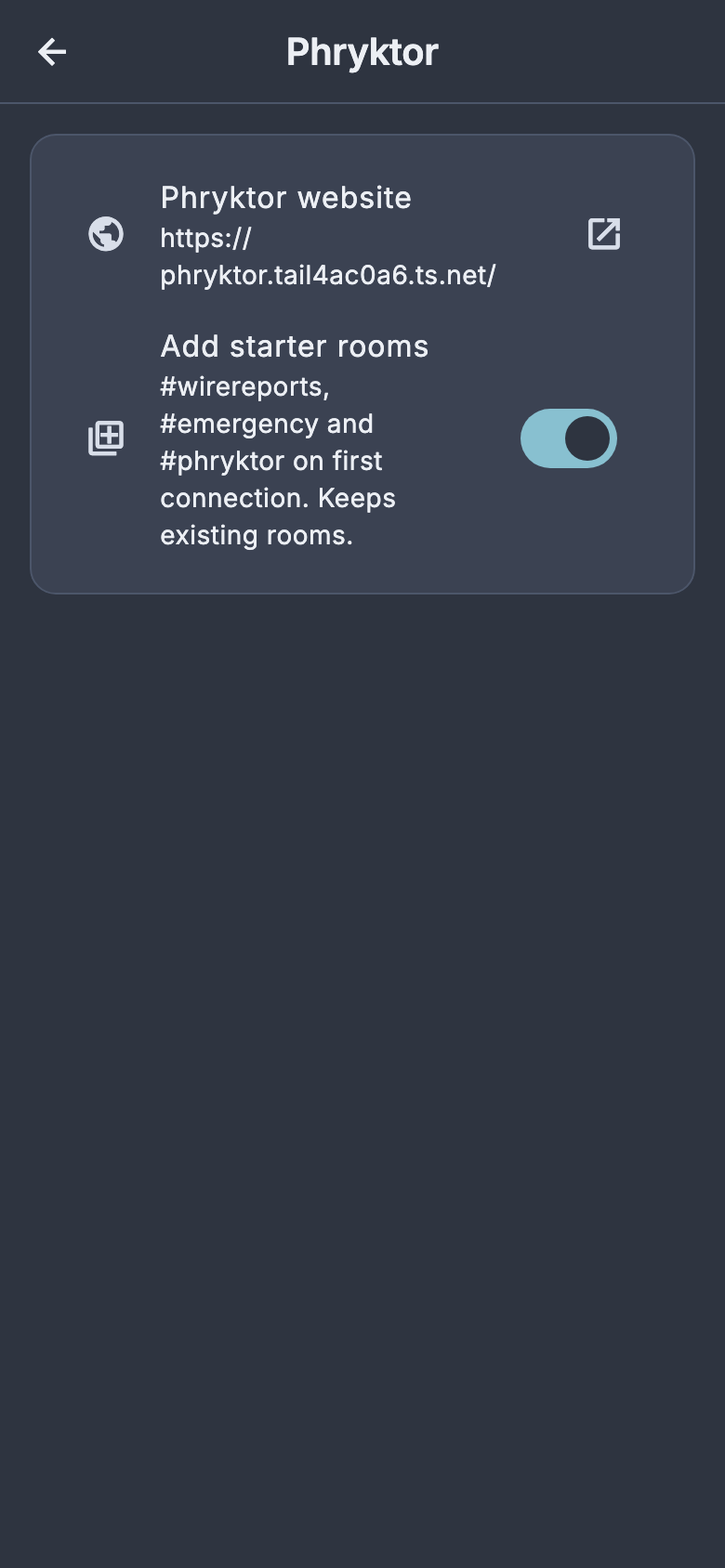
To join manually, open Grow the mesh and scan the public #phryktor QR using Settings → Tools → Scan room or contact QR. Review the imported room before saving. A connected companion and matching radio settings are still required.
The app divides longer text into numbered radio packets and combines matching received pieces by default. A tear line such as Missing part 2/3 marks text that was not received. Late parts can fill gaps. Settings → App Settings → Messaging → Combine multipart messages lets you show each original packet instead. A long message consumes more airtime and every piece can arrive independently.
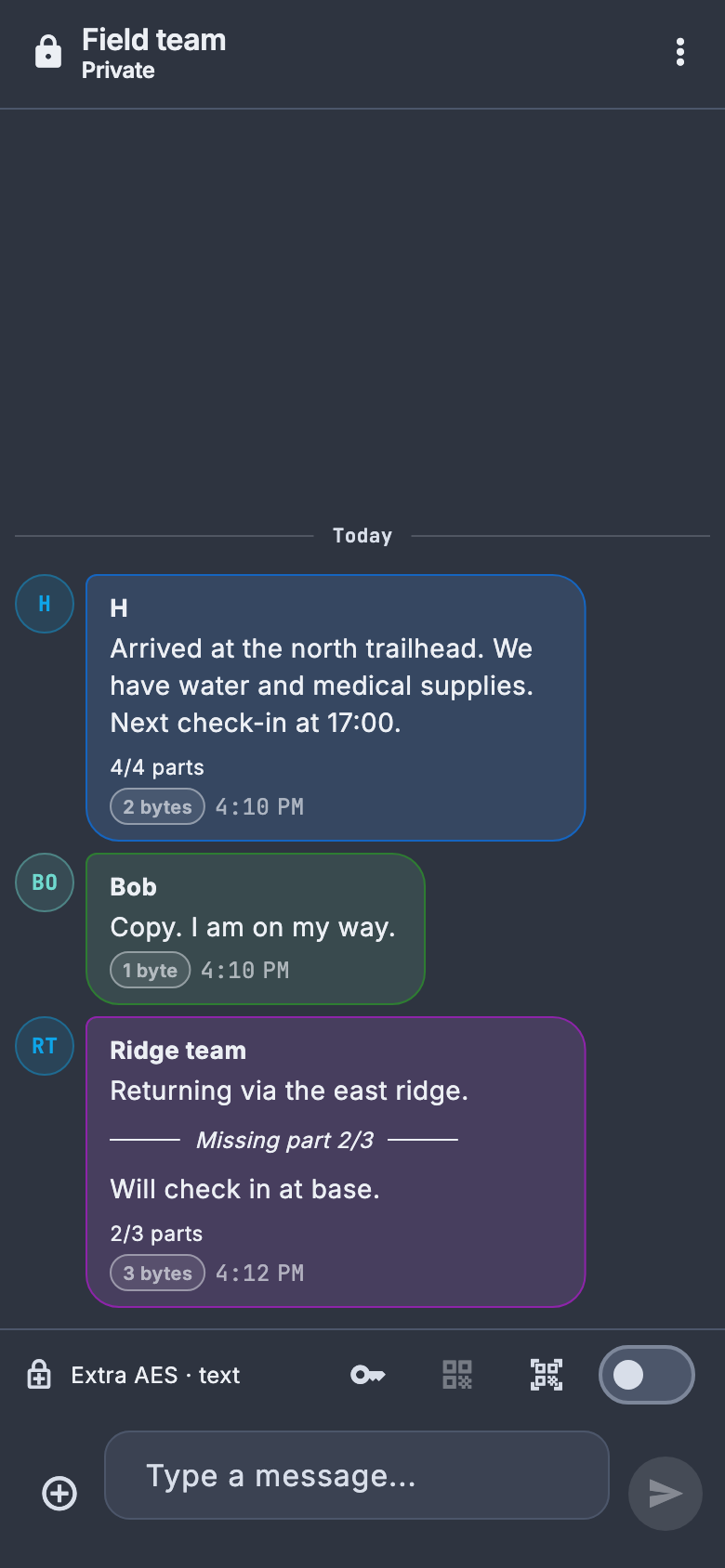
Colored routing badges describe bytes per hop hash when known, rather than text size or the number of hops. Defaults use green for one byte, blue for two and purple for three. Customize bubble colors in Appearance or conversation settings. Short hashes can identify more than one possible node.
Messaging → Hide test messages starts on. It hides recognized drills and testing-room traffic while retaining original history. Turn it off to read a practice exchange. Notifications has separate in-app emergency popup and phone notification choices; phone alerts also depend on Android permissions. Stored history does not replay a new emergency alert.
Open Settings → Tools → Emergency inbox to view MECP reports from loaded histories. Use its priority and drill filters, open the source chat or copy the visible log. The MECP Guide covers every code, composer field, training label and acknowledgement.
In a conversation, use the key beside Extra AES to configure a matching case-sensitive code with the other participant. This adds an app-specific text-encryption layer. Turning it off locks encrypted incoming/history text while retaining the saved code; turning it on permits reading with that code. Other clients need compatible support. Images are unavailable while this extra text encryption is enabled.
The QR beside Extra AES can contain the secret code and channel setup. Share it privately. The public #phryktor QR is separate from your private encryption setup. Mesh transport metadata remains visible to compatible observers.
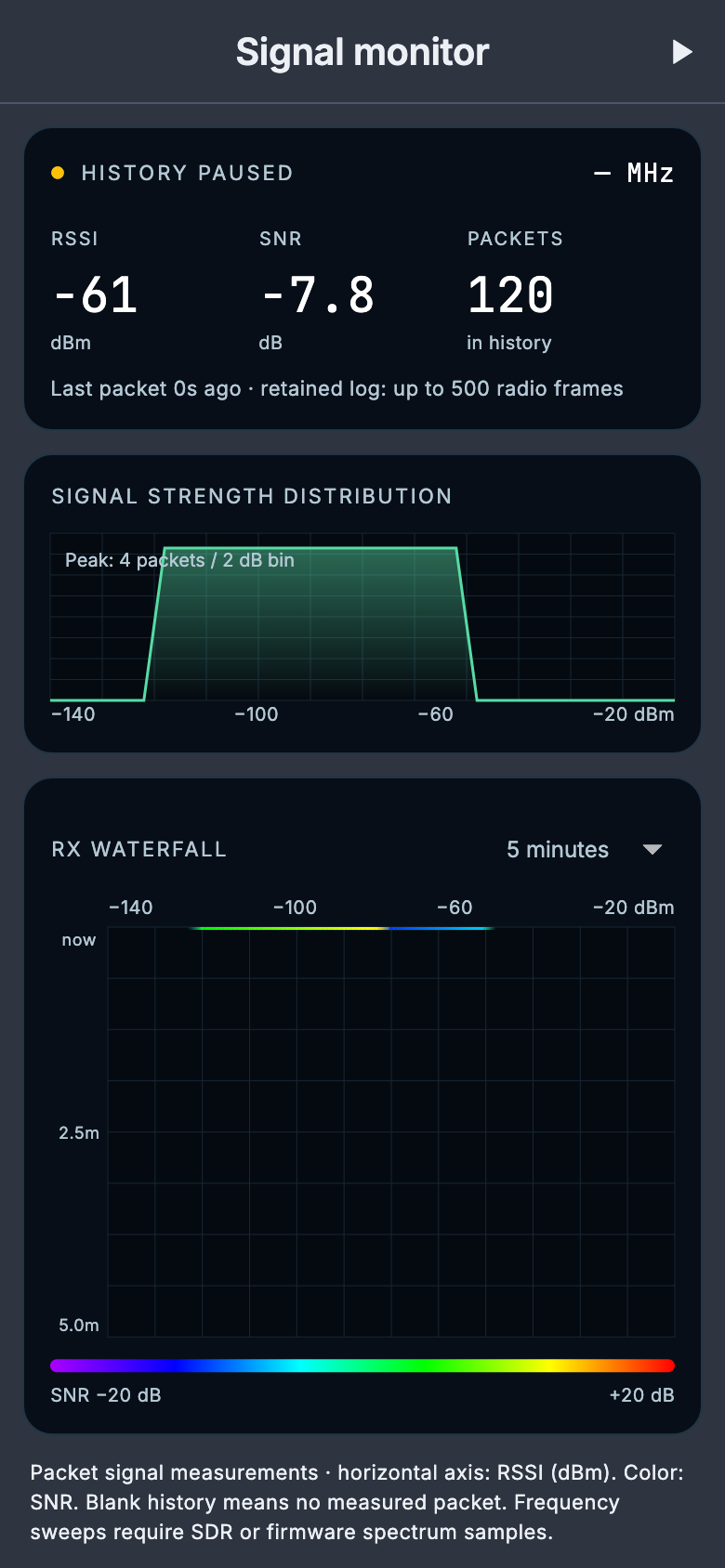
The current APK’s signing and content checks are verified. App guides describe implemented behavior and automated-test screenshots; a physical phone/radio session is needed to confirm your own permissions, device compatibility and reception.
The verified public download below remains stable build 2012. Car hub adds the new compact website view. The separate PhryktorCore Trial 1.1 APK is distributed privately for the owner and friends; it installs alongside stable and starts with its own setup. Close the other client before connecting the same radio.
The 1.1 trial adds native Hub, Channels, MECP and Weather tabs, chosen under Settings → App Settings → Notifications → Car & PhryktorNET hub. Select NET-only or Radio + NET, your city and the local radio rooms to display. NET-only can browse public observer rooms without a companion; Radio + NET provides local channel voice-to-text replies and direct-message notification replies. Local radio conversations and offline MECP decoding stay on the phone; NET observations come from this site's bounded public feed. The website does not transmit or receive your private phone chats.
A sideloaded APK can provide messaging notifications with Android Auto's Unknown sources setting. A native dashboard icon and Car App Library tabs require a trusted installation, such as private Google Play testing, or development testing with the Desktop Head Unit. Unknown sources does not unlock these templates. Read the complete trial setup and parked checklist.
PhryktorCore 1.0.0 build 2012 adds Android Auto message notifications, read-aloud, voice replies and mark-as-read actions. The phone runs the app and keeps its MeshCore companion connected.
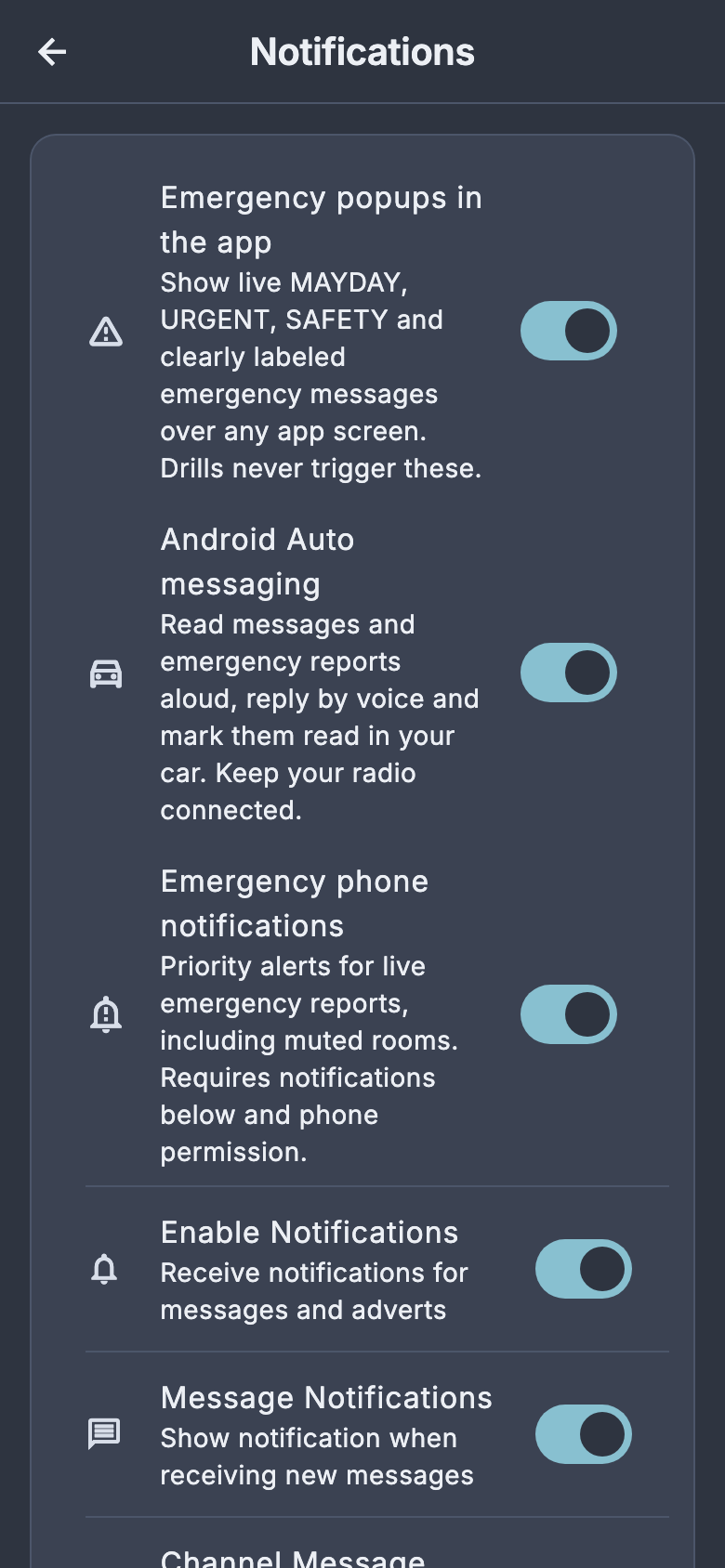
Mark-as-read updates local unread counts and notifications; it sends no mesh read receipt. MECP emergency text can be read aloud when emergency phone notifications are enabled. Drills retain their test filtering and do not trigger emergency priority.
Voice replies use the same radio send path and the conversation's Extra AES setting. Turning Extra AES off or changing its code removes protected notifications and blocks stale protected replies. The shared secret is not passed to the car reply action.
This release integrates messaging notifications. Radio settings, maps, QR setup and full history are available on the phone. Android Auto phone/head-unit operation still needs a real-device check; the source and automated tests were reviewed. Google's messaging integration reference.
A ZIP radius is measured from a Census representative point, not your home address or the ZIP boundary. A warning matches when its official polygon intersects that radius. Official non-weather emergency notices remain statewide. The website never infers that a warning ended merely because a source stopped updating.
The website’s official-warning filters and the phone app’s received-radio emergency notification settings are separate. Change each where you use it.
A Cast receiver needs internet access to this HTTPS site. Private LAN admin pages are separate from the public cast dashboard. Each receiving display renders current source data and can have different connectivity or stream availability.
Check the source and its timestamp before relying on a report. A blank view means no collected data, not an all-clear. Public radio messages are read only; the map shows observations heard by our receivers, rather than confirmed delivery at every node.
Your camera favorites, layout and display settings stay in this browser. Clearing browser storage resets them; another phone or computer has its own choices. Private administration, passwords, radio keys and receiver coordinates are excluded from the public site.
The maps retry temporary connection failures and refresh when you return to this tab. Previously received data keeps its original timestamp. If Recovery needs attention remains visible, open Feeds to check source ages and recovery history. After a site update, reload once to get the newest version. On MeshCore, check that updates and animation are enabled; packets move when actual mapped receptions arrive.
No features match. Try a page name or clear the search.
Top tabs contain the everyday pages. Their shortcuts lead to detailed views. This directory also links directly to analysis, archives, sources and display tools.
Read the recent local summary and followed areas.
Read official alerts and city observations. Use Weather alert area to choose a city and distance, county, or visible map area.
Identify observed coverage and places where collected data is missing.
Read source-linked incidents and local intelligence on a map.
Review recently changed records and their source times.
Search the retained public records by topic or text.
View official radar and available recorded frames.
Choose a city and read its seven-day morning, afternoon and evening forecast.
Check measured air quality, smoke observations and their dates.
Read reported water levels and stream observations.
Review available avalanche and mountain hazard advisories.
Search the statewide catalog by road or place.
Pin cameras, choose a grid and explicitly start supported live feeds.
Select a camera and replay the snapshots actually retained.
Review retained incident-area camera frames when a recording exists.
Find mountain corridor and resort-area cameras.
Read current source-reported closures, hazards and road conditions.
Follow I-25 and I-70 corridor conditions and nearby cameras.
Build a saved route view and inspect its latest source reports.
Open the aircraft-only map and select a received aircraft for details.
Choose news feeds, read source time and open the original reporting.
Read the current regional briefing and its source context.
Create a briefing PDF from collected information.
Browse attributed public sources and news feeds.
Read retained Wire reports credited to S2 Underground.
Read published radio reports and follow their relevant page links.
Watch actual locally received packets on the node map. Colors identify packet types; unresolved route hops remain gaps.
Open this view for its available observations and controls.
Select a public room and browse its retained message archive.
Explore advertised approximate node locations.
Search contact names and inspect received contact information.
Review the recorded radio network summary.
Filter observed packet types and inspect bytes, identifiers and available path metadata.
Replay the genuine packet samples retained by this system.
Inspect usable observed route relationships and unresolved hops.
Compare received signal measurements over available history.
View estimated public audience and radio activity metrics.
Read retained equipment and source-health checks.
Browse retained source snapshots with their original timestamps.
Check both radios and current collection services.
Inspect source timestamps and current equipment health.
Inspect receive-only observer counters and telemetry.
Read sanitized receiver and contribution information.
View current collection workload/container health.
Understand how observation data is collected, published and stored.
Inspect recovery attempts, results and backup status.
Review recorded report delivery outcomes.
Inspect retained public command requests and results.
See the latest received public events.
Customize available dashboard display preferences.
Rotate selected pages for a wall or TV display.
Read the bot commands and how to request reports.
Open this view for its available observations and controls.
Inspect public diagnostics and collection details.
| What you see | What to check |
|---|---|
| Weather seems unchanged | Compare Observed with Checked. A station may publish hourly even when this system checks every five minutes. Lakewood uses regional KBJC observations; that airport is not a sensor in every neighborhood. |
| A map has stopped moving | Return to the active tab, ensure updates and animation are enabled, and inspect the source age in Feeds. Reload once after an update. Packet motion requires actual usable observations. |
| No aircraft | Check the aircraft collector and source timestamp in Feeds. Coverage depends on local reception; a blank map does not prove the airspace is empty. |
| A camera will not play | Check whether a live stream is offered. Try its still image or another camera. Sources, network restrictions and codec support can affect playback. |
| A ZIP cannot be found | Use a five-digit Colorado-area ZIP in the Census catalog. Postal-only ZIPs may have no representative point. Choose a nearby city, county or map area instead. |
| App cannot find the radio | Confirm companion firmware, power, antenna, Bluetooth and permissions. Disconnect another app using the radio. Try a supported USB/TCP connection when applicable. |
| A test is missing in the app | Turn off Hide test messages or use Include drills in Emergency inbox. Recognized practice history is retained. |
| No phone emergency sound | Check both app notification switches and Android notification permission, priority-channel sound and do-not-disturb settings. Drills do not trigger emergency alerts. |
| Messages have a missing-part tear | One or more radio packets have not arrived. Wait for late parts or ask for the missing section; the app does not reconstruct absent words. |
| Website settings vanished | Choices belong to this browser/profile. Private browsing, cleared storage and another device have separate settings. Use saved/shared display profiles when moving between screens. |
| Recovery needs attention | Open Feeds and Recovery for current checks and timestamps. The owner’s private admin page contains restart/configuration controls; public viewers cannot restart services. |
For radio bot commands and report sections, use the current command reference. Requests and RF broadcasts consume radio airtime; avoid repeated test floods.
Guide reviewed 12 October 2026 against PhryktorNET 1.1, stable PhryktorCore 1.0.0 build 2012 and the separate private 1.1 trial. Screenshots contain example app test fixtures or dated website observations. Source availability and hardware behavior can vary.
Watch recorded packets move between the nodes, using the same colors and glowing orbs as the live map. Select a repeater or a recorded hour to explore its traffic.
Loading local packet history…
Choose Play recorded week or Replay this hour to watch genuine packet samples. Playback speed is illustrative; it does not measure radio transit time.
Select a named node to find others near its recent advertised position.
Compare repeaters seen in recorded routes during the last seven days. This measures traffic observed here; it is not a network-wide performance or reliability score.
Loading local packet history…
START SMALL · HELP THE COMMUNITY
A MeshCore radio lets your phone exchange short messages over LoRa without mobile data. Start with one companion radio. Add a repeater or an observer when you are ready.
Connect your companion radio, then scan this code with the MeshCore app to add the room.
On the same phone? Tap Add room in MeshCore. If your camera does not open the app, use its channel QR scanner. You can also add the hashtag #phryktor manually.
This is a public hashtag room. Adding it does not change your radio settings or share your location.
Best if you are comfortable assembling a board, antenna, battery and case. Buy the US-compatible 915 MHz version and the correct antenna. A board alone is not a weatherproof outdoor node.
Manufacturer specification & buying optionsAn enclosed nRF52840 handheld with battery and antenna. Confirm the exact hardware is supported in the MeshCore flasher. Some units arrive with Meshtastic firmware; they need matching MeshCore companion firmware to join this mesh.
Manufacturer instructionsA ready companion plus a solar repeater is a simpler outdoor starting point. Check the regional radio variant, mounting, sun exposure and local network settings before ordering.
Manufacturer kit · Solar setup guide#phryktor. Use the app’s hashtag channel option. The network page shows messages actually heard by this system; silence does not prove nobody received your message.Companion: connects your phone to the radio. Repeater: forwards compatible mesh traffic; good height, power and antenna placement matter more than frequent advertisements. Observer: listens and records packets for a map; it is not a repeater or a guarantee of delivery.
Help a neighbor set up a companion, place a well-powered repeater where it improves coverage, keep batteries and solar panels maintained, and contribute a receive-only observer. Obtain permission for mounting and do not publish other people’s private conversations or precise home locations.
Connect your MeshCore companion radio over Bluetooth, chat in channels or direct messages, manage contacts, and use Android Auto messaging for read-aloud and voice replies with a connected radio. Follow the app setup and Android Auto guide. Get the Android APK below, then follow the radio and room setup guide.
Use a spare supported LoRa radio and an always-on computer or Pi. Your observer listens locally and sends only packet metadata to PhryktorNET. Uploads are authenticated, checked, and held for the owner’s review by default.
Maximum 128 KiB; 1–250 recent observations. Credentials are never saved in browser storage.
PHRYKTOR REFERENCE · MECP
A complete guide to the Mesh Emergency Communication Protocol, its codes, and the way PhryktorCore and PhryktorNET display structured radio reports.
“It works like a multilingual phrasebook that happens to be machine-parseable.”— MECP project, maintained by xiang-dev-1
MECP assigns agreed meanings to short codes. Phryktor uses the developer’s language dictionary to show those meanings alongside the original message. Written details retain the sender’s wording.
MECP/<severity>/<codes> [details]
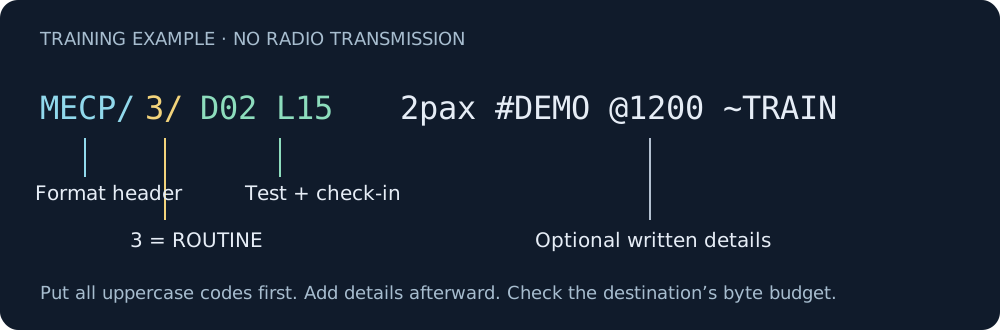
Example to read locally: MECP/3/D02 L15 2pax #DEMO @1200 ~TRAIN. D02 identifies a test; L15 is a check-in; 2pax means two people. This page does not transmit the example.
The MECP composer has a 200 UTF-8 byte ceiling. A destination’s available radio text budget can be smaller after sender and encryption overhead. PhryktorCore displays the applicable budget and rejects an oversized structured report. Keep an MECP report in one packet; shorten details rather than separating its header from its codes.
Ordering matters: MECP/3/D02 L15 P05 2pax 0.00000,0.00000 places every code before details. Once details start, a later code-like word remains detail text in the current Phryktor readers. The coordinates here are fictional training values.
| Value | Label | Use |
|---|---|---|
| 0 | MAYDAY | A reported immediate threat to life. |
| 1 | URGENT | A serious report requiring timely attention. |
| 2 | SAFETY | A hazard or safety advisory. |
| 3 | ROUTINE | Ordinary information, check-ins and non-emergency traffic. |
D01 means drill; D02 means test. Both produce a visible training label in Phryktor. D03 marks the end of a drill; D04 says a previous message was sent in error. Use D01 or D02 throughout practice exchanges. Removing a training label changes the meaning of the report.
R01 acknowledges a report, R02 says help is coming, and R07 reports resolution. B01 reports an active automated distress beacon, B02 acknowledges it, and B03 cancels it. These are statements made by the sender. A decoder does not activate a beacon or verify a rescue. Keep a matching incident reference when replying; confirm the original sender, location and current situation before treating a response as actionable.
| Text | Meaning | How to use it |
|---|---|---|
2pax | Two people | A positive whole number immediately followed by pax. |
0.00000,0.00000 | Latitude, longitude | Decimal degrees, latitude first. Add P05 to the codes. Valid latitude is −90 to 90; longitude −180 to 180. |
#DEMO | Incident reference | One to four letters or digits. Carry the same reference in related replies. |
@1200 | 1200 UTC / Zulu | Four-digit 24-hour UTC clock. The token has no date; interpret it with the message timestamp. |
@en | English language hint | A two-letter language hint; it does not translate additional details. |
~TRAIN | Sender callsign | One to nine letters or digits. This is sender-supplied text. |
R03 and 15 | Estimated arrival in 15 minutes | Put R03 among the codes and the number first in the details. |
The original MECP tool recognizes these conventions. PhryktorCore provides dedicated people, coordinates and incident-ID fields, and shows the remaining text literally. PhryktorNET’s room card shows every recognized code and the original details; the practice reader below also explains these conventions.
MECP is a text format. MeshCore supplies transport, routing and channel encryption separately. Public hashtag channels are shared community conversations; avoid including information you would not share publicly. Compatible language dictionaries decode codes offline. This website needs connectivity to load new radio observations.
For offline preparation, open Settings → Tools → Structured emergency message. With no conversation selected, Copy packet copies the reviewed text. It does not send a radio message.
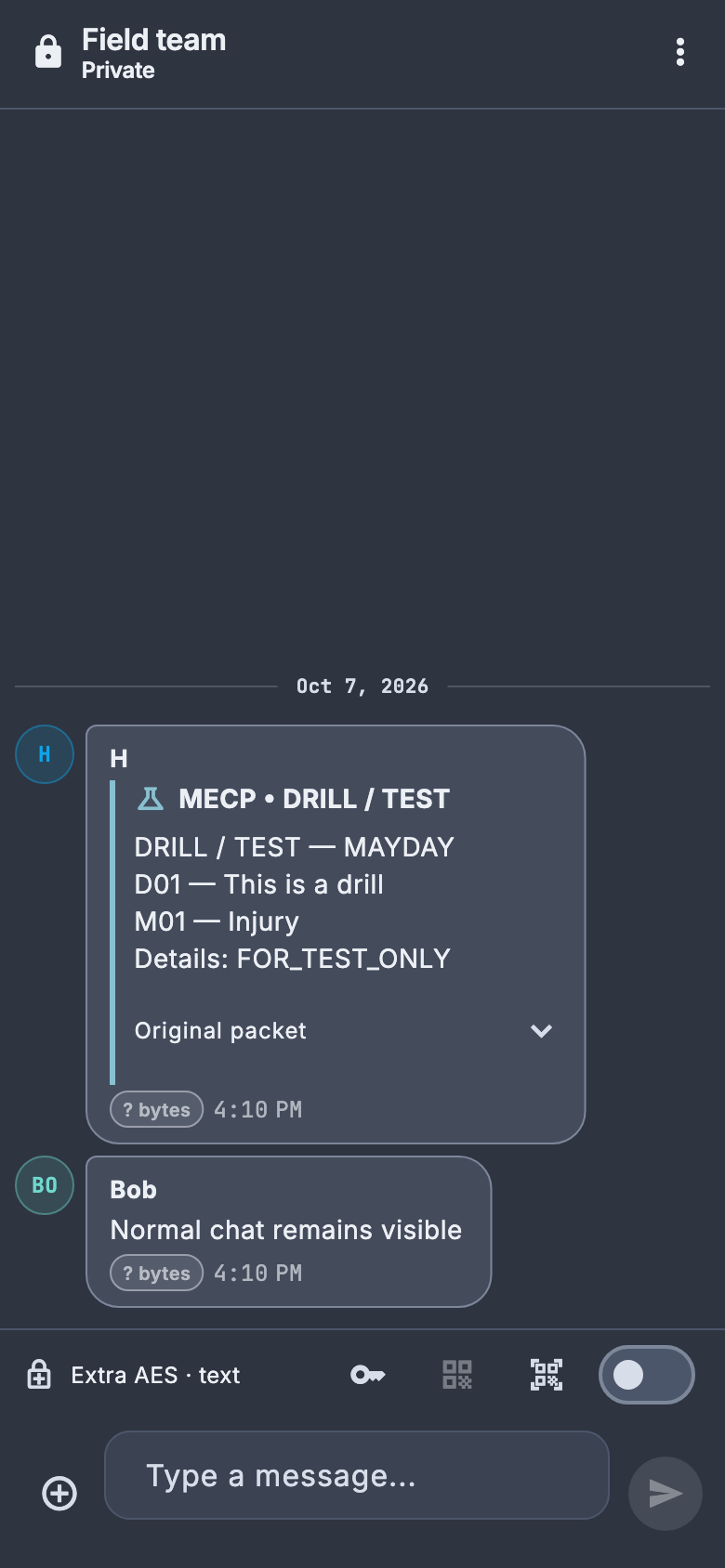
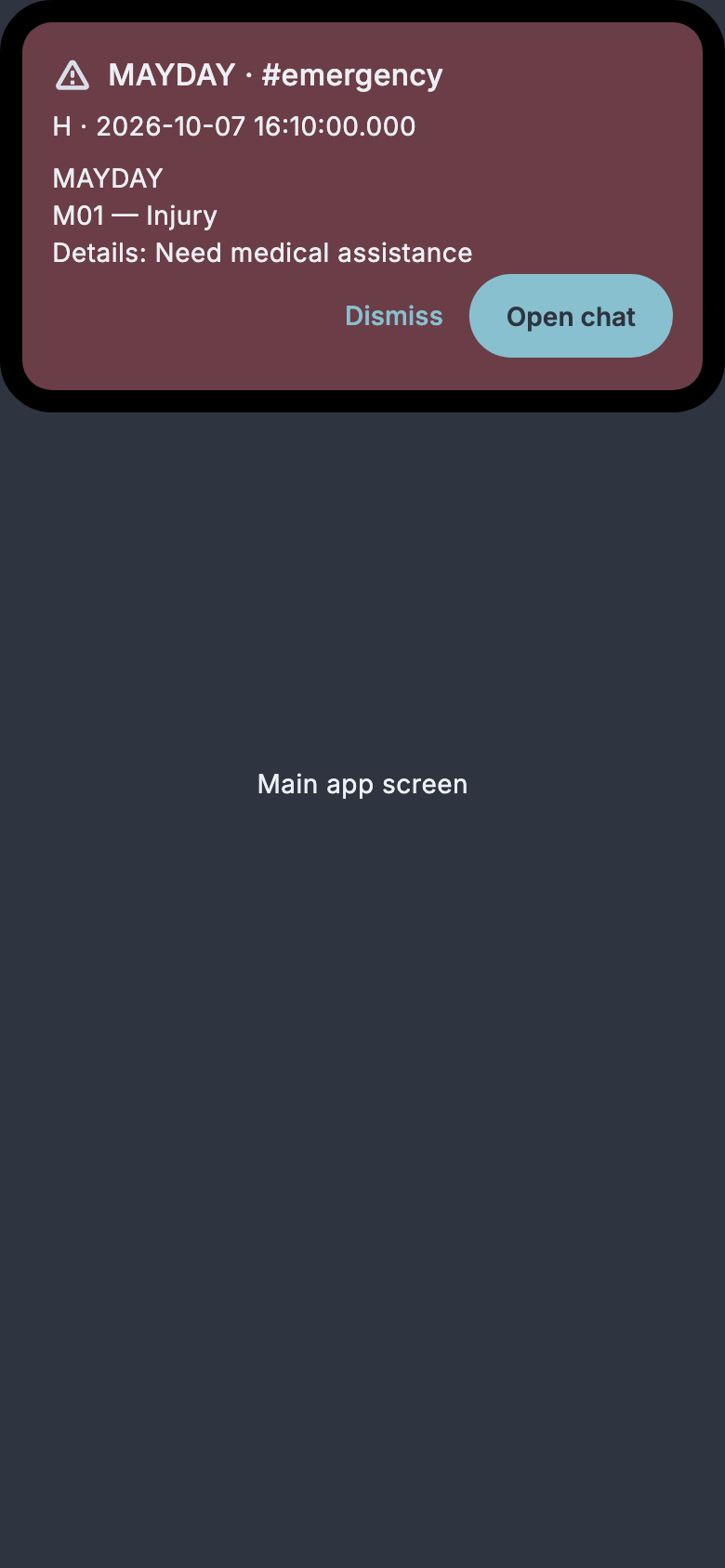
Supported incoming MECP messages display code descriptions using the app’s language pack, with English fallback. Expand Original packet to inspect or copy the exact text. Unknown identifiers remain visible. Open Settings → Tools → Emergency inbox for reports in the currently loaded channel and contact histories; use its priority and drill filters, open the original chat or copy the visible report log.
Settings → App Settings → Messaging → Hide test messages starts on. Turn it off to view retained practice reports; hiding them does not delete history. The inbox’s Include drills chip controls that view. Under Notifications, configure Emergency popups in the app and Emergency phone notifications separately. Live valid severity 0, 1 and 2 reports can qualify; drills and testing-room traffic do not. Phone notifications also require the general notification switch and Android permission.
Replies from the emergency inbox prepare an acknowledgement for you to review and explicitly send. Received reports and acknowledgements are peer communications. PhryktorCore does not turn them into an official warning.
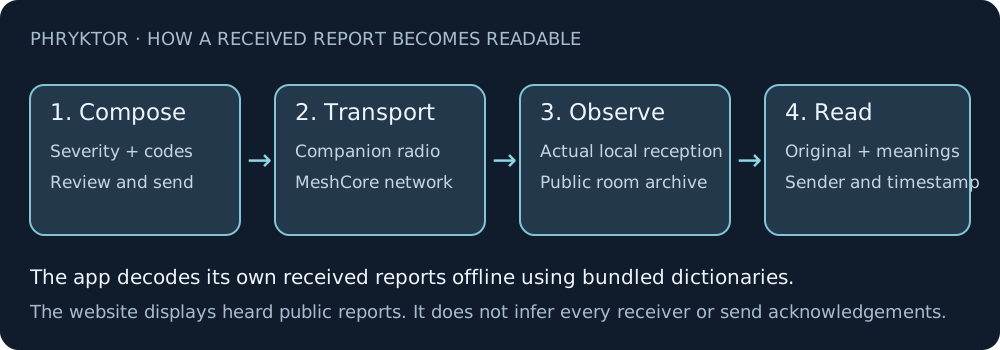
The live room feed checks for new arrivals approximately every three seconds; RF reception, processing and connectivity affect when a message appears. Private direct-message histories are excluded from the public archive.
Packet orbs visualize received route metadata with usable node matches. A readable MECP report is not automatically matched to an encrypted packet by timing, and its coordinates do not identify the private observer. The website sends no acknowledgements from its reader and creates no official emergency banner from a community MECP report.
Home warning popups use current official weather and agency sources. Customize those separately with Weather alert area → ZIP + distance, a city, county or the visible map. Community radio reports keep their own sender attribution.
Paste a packet or choose a training example. This reader runs in your browser and has no send control.
All 108 codes in the installed MECP dictionary, organized into 12 categories. Search an identifier or its meaning. The category is part of the identifier, so M01 and T01 mean different things.
Loading the installed dictionary…
| Code | Category | English meaning |
|---|
MECP is maintained by xiang-dev-1. The quotation above is from the project README. This guide documents Phryktor’s installed dictionary and current integration, reviewed 11 October 2026. Phryktor does not claim authorship of MECP or endorsement by its developer.
App screenshots show development test fixtures with example data, not a live emergency or a physical-device verification. Website screenshots and diagrams are supplied by Phryktor. Installation and hardware troubleshooting are covered in the App & site guide.